Amegos Google Slide Template: A Practical Guide for Better Presentations
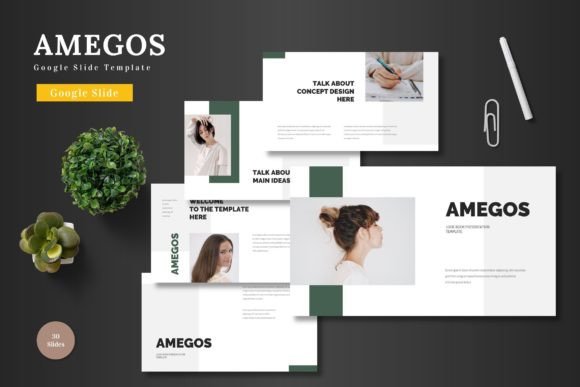
If you’ve found yourself searching for a presentation template that promises ease, quality, and impact, Amegos - Google Slide Template likely appears in your results. It’s marketed as a clean, scalable, and multipurpose option suitable for business, pitch decks, e-commerce, or product promotion. The core promise is straightforward: a professional, editable template within Google Slides, requiring no other software. But between the promise and a polished final presentation lies a journey of practical application. Choosing and using any template well requires understanding not just its features, but how to integrate it effectively into your real workflow.
The Allure of a Single Platform and Common Missteps
The primary appeal of the Amegos template is its native Google Slides format. This means all editing—inputting content, replacing images, changing colors—is done directly within the web app. A common oversight, however, is underestimating the preparation needed before you even open the template. Many users download the file, open it, and immediately start dragging text into placeholders without a clear plan. This often results in a presentation that, while visually templated, lacks a coherent narrative flow. The template’s structure, with its 150 total slides across 5 premade colors, offers immense variety, but that can lead to a disjointed selection of slides if you hop between sections without intention.
A better approach is to treat the template as a toolkit, not a pre-written script. Before clicking "Google Slides," outline your presentation's core message and key points. Then, explore the template’s Master Slides and section breaks. Understanding the master layout will save you countless hours; changes made here propagate through related slides, ensuring consistency. Failing to leverage this can leave you manually adjusting every single slide, negating the efficiency the template is meant to provide.
Navigating the Feature Set Without Overcomplication
The feature list is robust: handcrafted infographics, pixel-perfect illustrations, resizable graphics, and picture placeholders for drag-and-drop. A frequent misunderstanding is to try to use every feature in one presentation. The animated slides, for instance, are a powerful tool for emphasis, but sprinkling animation on every slide creates distraction, not engagement. The same goes for the five color variations. Switching color schemes mid-presentation for "variety" often breaks visual cohesion and confuses the audience.
Practical advice? Commit to one of the five color schemes at the start and stick with it throughout your entire presentation. This builds a strong, professional visual identity. Use the animated slides sparingly, perhaps only for revealing key data points or transitioning between major sections. Remember, the handcrafted infographics are there to simplify complex information. Choose the one that most accurately represents your data, not the one that looks the most ornate. Misalignment between graphic type and data type is a subtle but common error that reduces clarity.
The Critical Details Before You Download
What should you check before making a decision? First, confirm the actual included files. The Amegos package includes a main Google Slides file and additional PPTX files. If your workflow is strictly Google-based, the PPTX files might be less relevant, but they offer a backup for PowerPoint environments. Ensure you have access to the fonts listed in the provided photo information; font substitution can alter the template’s intended aesthetic and spacing. While the template states all elements are editable, test this claim with a simple action in your downloaded file. Can you easily change the color of an icon? Is the text placeholder truly flexible for your longer content?
Another overlooked detail is the audience and context. The template is multipurpose, but a pitch deck for investors and an internal team briefing require different tones. The Amegos template’s clean, colorful design is versatile, but you must tailor the content density and visual weight. For a fast-paced pitch, leverage the portfolio and gallery slides for high-impact visuals. For a detailed business report, lean on the structured infographic slides. Applying the same slide style to both scenarios is a mistake that weakens communication.
A Realistic Workflow for Success
Imagine you’re promoting a new product. A poor approach would be to drop product images into every placeholder and fill text boxes with marketing copy from a brochure. The result is a cluttered, overwhelming slide deck. A better choice is to use the template’s structure to build a story. Start with a clean title slide using your chosen color scheme. Use a single, strong picture placeholder on the problem-definition slide. Employ an infographic slide to show market data, not just a bullet list. Use the animated slide only for the final reveal of your product’s unique feature. This thoughtful curation uses the template as a guide, forcing you to distill your message into its most potent visual and textual forms.
Finally, remember that "editable" does not mean "automatically perfect." The quality of your final presentation hinges on your input. Replacing images with low-resolution photos, using clashing colors outside the scheme, or overloading slides with text will degrade the output. The template provides a professional framework, but your content must meet that standard. Before you present your slides to the world, step back and review the deck as an audience member would. Is the flow logical? Are the visuals supporting the points? Is the color consistency maintained? This final review is the simplest, yet most effective, step to ensure the Amegos - Google Slide Template elevates your work, rather than just decorating it.
In essence, this template is a powerful ally for anyone from entrepreneurs to educators seeking to create compelling presentations directly within Google Slides. By avoiding the common pitfalls of haphazard editing, feature overload, and context mismatch, you can harness its full potential. Plan first, then edit. Simplify, don’t complicate. And always align the template’s tools with your specific communication goal. That practical mindset transforms a downloadable template into a genuinely effective presentation.